
Appearance
了解 .NET MAUI 基础知识
创建项目
sh
$ dotnet new maui -o MyMauiApp- 默认项目结构
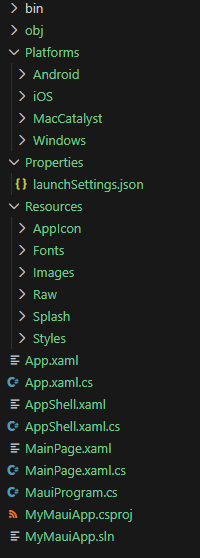
(图片来源:自己截的)
主要项目文件夹和文件
App.xaml和App.xaml.cs
这两个文件定义了一个继承自 Application 的类。在 App.xaml.cs 中,我们通常设置应用程序的主窗口(在 .NET MAUI 中,这通常是 AppShell 的一个实例)。App.xaml 可以用来定义应用程序级别的资源,比如样式、颜色等。
App.xaml
xml
<?xml version = "1.0" encoding = "UTF-8" ?>
<Application xmlns="http://schemas.microsoft.com/dotnet/2021/maui"
             xmlns:x="http://schemas.microsoft.com/winfx/2009/xaml"
             xmlns:local="clr-namespace:MyMauiApp"
             x:Class="MyMauiApp.App">
    <Application.Resources>
        <ResourceDictionary>
            <ResourceDictionary.MergedDictionaries>
                <ResourceDictionary Source="Resources/Styles/Colors.xaml" />
                <ResourceDictionary Source="Resources/Styles/Styles.xaml" />
            </ResourceDictionary.MergedDictionaries>
        </ResourceDictionary>
    </Application.Resources>
</Application>
App.xaml.cs
c#
using Microsoft.Extensions.DependencyInjection;

namespace MyMauiApp;

public partial class App : Application
{
	public App()
	{
		InitializeComponent();
	}

	protected override Window CreateWindow(IActivationState? activationState)
	{
		return new Window(new AppShell());
	}

    // Optional events to implement for the application lifecycle. The Window created
    // above also has lifecycle events that can be used to track the Window lifecycle.
    protected override void OnStart()
    {
        base.OnStart();
    }

    protected override void OnResume()
    {
        base.OnResume();
    }

    protected override void OnSleep()
    {
        base.OnSleep();
    }
}AppShell.xaml和AppShell.xaml.cs
这是应用程序的 shell,它提供了一种定义应用程序结构和导航的方式。在 AppShell.xaml 中,我们可以定义 flyout、tabs 等导航结构。AppShell.xaml.cs 是它的代码隐藏文件。
AppShell.xaml
xml
<?xml version="1.0" encoding="UTF-8" ?>
<Shell
    x:Class="MyMauiApp.AppShell"
    xmlns="http://schemas.microsoft.com/dotnet/2021/maui"
    xmlns:x="http://schemas.microsoft.com/winfx/2009/xaml"
    xmlns:local="clr-namespace:MyMauiApp"
    Title="MyMauiApp">

    <ShellContent
        Title="Home"
        ContentTemplate="{DataTemplate local:MainPage}"
        Route="MainPage" />

</Shell>
AppShell.xaml.cs
c#
namespace MyMauiApp;

public partial class AppShell : Shell
{
	public AppShell()
	{
		InitializeComponent();
	}
}MainPage.xaml和MainPage.xaml.cs
这是应用程序的主页面,通常是在 AppShell 中定义的一个页面。它包含页面的 UI 定义(在 XAML 中)和逻辑(在代码隐藏文件中)。
MainPage.xaml
xml
<?xml version="1.0" encoding="utf-8" ?>
<ContentPage xmlns="http://schemas.microsoft.com/dotnet/2021/maui"
xmlns:x="http://schemas.microsoft.com/winfx/2009/xaml"
x:Class="MyMauiApp.MainPage">
<ScrollView>
<VerticalStackLayout
Padding="30,0"
Spacing="25">
<Image
Source="dotnet_bot.png"
HeightRequest="185"
Aspect="AspectFit"
SemanticProperties.Description="dot net bot in a submarine number ten" />
<Label
Text="Hello, World!"
Style="{StaticResource Headline}"
SemanticProperties.HeadingLevel="Level1" />
<Label
Text="Welcome to .NET Multi-platform App UI"
Style="{StaticResource SubHeadline}"
SemanticProperties.HeadingLevel="Level2"
SemanticProperties.Description="Welcome to dot net Multi platform App U I" />
<Button
x:Name="CounterBtn"
Text="Click me"
SemanticProperties.Hint="Counts the number of times you click"
Clicked="OnCounterClicked"
HorizontalOptions="Fill" />
</VerticalStackLayout>
</ScrollView>
</ContentPage>MainPage.xaml.cs
c#
namespace MyMauiApp;

public partial class MainPage : ContentPage
{
	int count = 0;

	public MainPage()
	{
		InitializeComponent();
	}

	private void OnCounterClicked(object? sender, EventArgs e)
	{
		count++;

		if (count == 1)
			CounterBtn.Text = $"Clicked {count} time";
		else
			CounterBtn.Text = $"Clicked {count} times";

		SemanticScreenReader.Announce(CounterBtn.Text);
	}
}
Platforms 文件夹
此文件夹包含特定于平台的初始化代码文件和资源。有针对Android、iOS、MacCatalyst和Windows的文件夹。在运行时,应用程序以特定于平台的方式启动。MAUI库抽象出了启动过程的大部分内容,但是这些文件夹中的代码文件提供了一种机制来连接您自己的自定义初始化。重要的一点是,初始化完成后,特定于平台的代码调用MauiProgram.CreateMauiApp方法,然后按照前面的描述创建并运行App对象。例如,Android文件夹下的MainApplication.cs文件,iOS和MacCatalyst文件夹下的AppDelegate.cs文件,Windows文件夹下的App.xaml.cs文件都包含覆盖:
c#
protected override MauiApp CreateMauiApp() => MauiProgram.CreateMauiApp();Resources 文件夹
包含所有平台使用的共享字体、图像和资产。
MauiProgram.cs
这是 .NET MAUI 应用程序的入口点,它使用 MauiApp.CreateBuilder() 创建一个应用程序构建器,配置服务、字体、以及应用程序的主页面(通常是通过 AppShell)。它类似于 ASP.NET Core 中的 Program.cs。
c#
using Microsoft.Extensions.Logging;

namespace MyMauiApp;

public static class MauiProgram
{
	public static MauiApp CreateMauiApp()
	{
		var builder = MauiApp.CreateBuilder();
		builder
			.UseMauiApp<App>()
			.ConfigureFonts(fonts =>
			{
				fonts.AddFont("OpenSans-Regular.ttf", "OpenSansRegular");
				fonts.AddFont("OpenSans-Semibold.ttf", "OpenSansSemibold");
			});

#if DEBUG
		builder.Logging.AddDebug();
#endif

		return builder.Build();
	}
}
在 .NET MAUI 应用中创建 UI 的两种方式
- 新建MauiProgram.cs:
c#
using Microsoft.Extensions.Logging;

namespace MyMauiApp;

public static class MauiProgram
{
	public static MauiApp CreateMauiApp()
	{
		var builder = MauiApp.CreateBuilder();
		builder
			.UseMauiApp<MyApp>();

#if DEBUG
		builder.Logging.AddDebug();
#endif

		return builder.Build();
	}
}

class MyApp : Application
{
	protected override Window CreateWindow(IActivationState? activationState)
	{
		return new Window(new MyMainPage());
	}
}
使用 C# 代码
- 新建MyMainPage.cs:
c#
using System.Diagnostics;

namespace MyMauiApp;

public class MyMainPage : ContentPage
{
	Button loginButton;
	VerticalStackLayout layout;

	public MyMainPage()
	{
		this.BackgroundColor = Color.FromArgb("512bdf");

		layout = new VerticalStackLayout
		{
			Margin = new Thickness(15, 15, 15, 15),
			Padding = new Thickness(30, 60, 30, 30),
			Children =
			{
				new Label { Text = "Please log in", FontSize = 30, TextColor = Color.FromRgb(255, 255, 100) },
				new Label { Text = "Username", TextColor = Color.FromRgb(255, 255, 255) },
				new Entry (),
				new Label { Text = "Password", TextColor = Color.FromRgb(255, 255, 255) },
				new Entry { IsPassword = true }
			}
		};

		loginButton = new Button { Text = "Login", BackgroundColor = Color.FromRgb(0, 148, 255) };
		layout.Children.Add(loginButton);

		Content = layout;

		loginButton.Clicked += (sender, e) =>
		{
			Debug.WriteLine("Clicked !");
		};
	}
}
使用 XAML
- 新建MyMainPage.xaml:
xml
<?xml version="1.0" encoding="utf-8" ?>
<ContentPage xmlns="http://schemas.microsoft.com/dotnet/2021/maui"
             xmlns:x="http://schemas.microsoft.com/winfx/2009/xaml"
             x:Class="MauiXaml.MyMainPage"
             BackgroundColor="#512bdf">

    <VerticalStackLayout Margin="15" Padding="30, 60, 30, 30">
        <Label Text="Please log in" FontSize="30" TextColor="AntiqueWhite"/>
        <Label Text="Username" TextColor="White" />
        <Entry />
        <Label Text="Password" TextColor="White" />
        <Entry IsPassword="True" />
        <Button Text="Log in" BackgroundColor="#0094FF" Clicked="LoginButton_Clicked" />
    </VerticalStackLayout>
</ContentPage>- 修改MyMainPage.cs:
c#
using System.Diagnostics;

namespace MyMauiApp;

public partial class MyMainPage : ContentPage
{
	public MyMainPage()
	{
		InitializeComponent();
	}

	void LoginButton_Clicked(object? sender, EventArgs e)
	{
		Debug.WriteLine("Clicked !");
	}
}