
Appearance
ASP.NET Core Blazor 入门
创建项目
sh
$ dotnet new blazor -o BlazorSamples- 默认项目结构
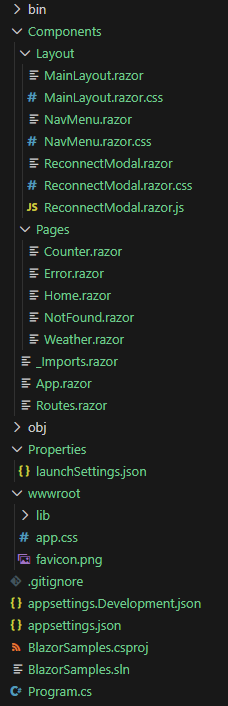
(图片来源:自己截的)
主要项目文件夹和文件
Components、Components/Pages 和 Components/Layout 文件夹
通常,嵌套在其他组件中且不可通过 URL 直接访问(“可路由”)的组件放置在 Components 文件夹中。 可通过 URL 路由的组件通常放置在 Components/Pages 文件夹中。
Components/Layout 文件夹包含以下布局组件和样式表:
MainLayout组件 (MainLayout.razor):应用的布局组件。MainLayout.razor.css:应用主布局的样式表。NavMenu组件 (NavMenu.razor):实现边栏导航。 此组件使用多个NavLink组件呈现指向其他 Razor 组件的导航链接。NavMenu.razor.css:应用导航菜单的样式表。ReconnectModal组件(ReconnectModal.razor):反映 UI 中的服务器端连接状态。ReconnectModal.razor.css:ReconnectModal组件的样式表。ReconnectModal.razor.js: 用于ReconnectModal组件的 JavaScript 文件。
Components/_Imports.razor 文件
_Imports 文件 (_Imports.razor) 包含了一些通用的 Razor 指令,这些指令要包含在应用的 Razor 组件中。Razor 指令是以 @ 为前缀的保留关键字,改变组件标记或组件元素编译或运行的方式。
Components/App.razor 文件
App 组件 (App.razor) 是应用的根组件,其中包括:
- HTML 标记。
Routes组件。- Blazor 脚本(
<script>的blazor.web.js标记)。
根组件是应用加载的第一个组件。
Components/Routes.razor 文件
Routes 组件 (Routes.razor) 为应用设置路由。
wwwroot 文件夹
包含静态资产,如 HTML 文件、JavaScript 文件和 CSS 文件。
appsettings.json
包含配置数据,如数据库连接字符串。
Program.cs 文件
c#
// 创建一个新的 WebApplication 构建器实例,用于配置和构建应用程序
var builder = WebApplication.CreateBuilder(args);

// 添加服务到依赖注入容器
builder.Services.AddRazorComponents();

// 构建应用程序实例
var app = builder.Build();

// 配置静态资源(如 CSS、JS、图片等)的映射,使其可通过 HTTP 访问
app.MapStaticAssets();

// 配置根组件(App)并启用交互式服务器端渲染模式
app.MapRazorComponents<App>();

// 启动应用程序并开始监听 HTTP 请求
app.Run();
添加组件
添加根组件 App.razor
- 新建Components/App.razor:
c#
<!DOCTYPE html>
<html lang="zh">

<head>
    <meta charset="utf-8" />
    <title>@title - Blazor Samples</title>
</head>

<body>
    <header>
        <nav>
            <!-- 导航菜单 -->
        </nav>
    </header>

    <main>
        <h1>Hello, World!</h1>

        <p>Welcome to your Blazor App!</p>
    </main>

    <footer>
        <!-- 页脚内容 -->
    </footer>
</body>

</html>

@code {
    private string title = "Hello, World";
}- 新建Components/Pages/HelloWorld.razor:
c#
@page "/helloworld"

<p>Hello from our Blazor Template!</p>
导航到 https://localhost:{PORT}/HelloWorld,会发现显示的还是 App.razor 里的内容,说明需要添加路由组件。
添加路由组件 Routes.razor
- 新建Components/Routes.razor:
c#
@using Microsoft.AspNetCore.Components.Routing

<Router AppAssembly="typeof(Program).Assembly">
    <Found Context="routeData">
        <RouteView RouteData="routeData" />
    </Found>
</Router>
添加布局组件 MainLayout.razor
MainLayout 组件是应用程序的默认布局。MainLayout 组件继承了 LayoutComponentBase,后者是表示布局的组件的基类。使用该布局的应用组件呈现在Body (@Body)出现在标记中的地方。
按照约定,Blazor 中的默认布局文件为 Components/Layout/MainLayout.razor。
c#
@inherits LayoutComponentBase

<header>
    <nav>
        <!-- 导航菜单 -->
    </nav>
</header>

<main>
    @Body
</main>

<footer>
    <!-- 页脚内容 -->
</footer>- 修改Components/App.razor
c#
<!DOCTYPE html>
<html lang="zh">

<head>
    <meta charset="utf-8" />
    <HeadOutlet />
</head>

<body>
    <h1>Hello, World!</h1>

    <p>Welcome to your Blazor App!</p>

    <Routes />
</body>

</html>
在 Routes.razor 中使用默认布局
- 修改Components/Routes.razor:
c#
@using Microsoft.AspNetCore.Components.Routing

<Router AppAssembly="typeof(Program).Assembly">
    <Found Context="routeData">
        <RouteView RouteData="routeData" DefaultLayout="typeof(Layout.MainLayout)" />
    </Found>
</Router>
为每个组件导入共享指令
应用程序的每个文件夹都可以包含一个名为_Imports.razor的模板文件。编译器将_Imports.razor文件中指定的指令包含在同一个文件夹的所有Razor模板中,并递归地包含在它的所有子文件夹中。
按照约定,Blazor 中的 _Imports.razor 文件位于 Components/_Imports.razor。
c#
@using System.Net.Http
@using System.Net.Http.Json
@using Microsoft.AspNetCore.Components.Forms
@using Microsoft.AspNetCore.Components.Routing
@using Microsoft.AspNetCore.Components.Web
@using static Microsoft.AspNetCore.Components.Web.RenderMode
@using Microsoft.AspNetCore.Components.Web.Virtualization
@using Microsoft.JSInterop
@using BlazorSamples
@using BlazorSamples.Components
@using BlazorSamples.Components.Layout
使用 PageTitle 组件指定页面标题
HeadOutlet 组件呈现 PageTitle 和 HeadContent 组件提供的内容。
在 Components/Layout/MainLayout.razor 中的 <head> 里加入 <HeadOutlet />:
c#
<head>
    ...
    <HeadOutlet />
</head>- 修改Components/Pages/HelloWorld.razor:
c#
@page "/helloworld"

<PageTitle>Hello, World</PageTitle>

<p>Hello from our Blazor Template!</p>
添加模型
添加数据模型类
- 添加名为 Models 的文件夹,新建Models/Product.cs:
c#
using System;
using System.ComponentModel.DataAnnotations;

namespace BlazorSamples.Models;

public class Product
{
    public int Id { get; set; }
    public string? Name { get; set; }
    public string? Description { get; set; }
    [DataType(DataType.Date)]
    public DateTime CreatedDate { get; set; }
    public decimal Price { get; set; }
}
使用 aspnet-codegenerator 生成 CRUD 组件(可选)
sh
$ dotnet tool uninstall --global dotnet-aspnet-codegenerator
$ dotnet tool install --global dotnet-aspnet-codegenerator
$ dotnet add package Microsoft.VisualStudio.Web.CodeGeneration.Design
$ dotnet add package Microsoft.EntityFrameworkCore.Tools
$ dotnet add package Microsoft.AspNetCore.Components.QuickGrid
$ dotnet add package Microsoft.AspNetCore.Components.QuickGrid.EntityFrameworkAdapter
$ dotnet add package Microsoft.AspNetCore.Diagnostics.EntityFrameworkCore
$ dotnet aspnet-codegenerator blazor CRUD -m Product -dc BlazorSamples.Data.ProductDbContext -outDir Components/Pages --databaseProvider sqlite
Building project ...
Finding the generator 'blazor'...
Running the generator 'blazor'...

Minimal hosting scenario!
Generating a new DbContext class 'BlazorSamples.Data.ProductDbContext'
Attempting to compile the application in memory with the added DbContext.
Attempting to figure out the EntityFramework metadata for the model and DbContext: 'Product'

Using database provider 'Microsoft.EntityFrameworkCore.Sqlite'!

Added DbContext : '\Data\ProductDbContext.cs'
Added Blazor Page : D:\dotnet-training\BlazorSamples\Components\Pages\ProductPages\Create.razor
Added Blazor Page : D:\dotnet-training\BlazorSamples\Components\Pages\ProductPages\Delete.razor
Added Blazor Page : D:\dotnet-training\BlazorSamples\Components\Pages\ProductPages\Details.razor
Added Blazor Page : D:\dotnet-training\BlazorSamples\Components\Pages\ProductPages\Edit.razor
Added Blazor Page : D:\dotnet-training\BlazorSamples\Components\Pages\ProductPages\Index.razor
Modified D:\dotnet-training\BlazorSamples\Program.cs.
安装 Entity Framework Core
sh
$ dotnet add package Microsoft.EntityFrameworkCore.Sqlite- 修改Program.cs
c#
builder.Services.AddDbContext<ProductDbContext>(options =>
options.UseSqlite(builder.Configuration.GetConnectionString("ProductDbContext") ?? throw new InvalidOperationException("Connection string 'ProductDbContext' not found.")));- 修改appsettings.json
json
"ConnectionStrings": {
    "ProductDbContext": "Data Source=Product.db"
  }
使用 dotnet-ef 生成数据库(可选)
sh
$ dotnet tool uninstall --global dotnet-ef
$ dotnet tool install --global dotnet-ef
$ dotnet add package Microsoft.EntityFrameworkCore.Design
$ dotnet ef migrations add InitialCreate
$ dotnet ef database update
添加新字段
修改模型
在 Product.cs 中添加 Type 属性。
c#
using System;
using System.ComponentModel.DataAnnotations;

namespace BlazorSamples.Models;

public class Product
{
    public int Id { get; set; }
    public string? Name { get; set; }
    public string? Description { get; set; }
    [DataType(DataType.Date)]
    public DateTime CreatedDate { get; set; }
    public decimal Price { get; set; }
    [DataType(DataType.Text)]
    public ProductTypeEnum Type { get; set; }
}

public enum ProductTypeEnum
{
    Foods, Clothes, Books
}
修改组件
在 /Components/Pages/ProductPages/ 目录下的所有 .razor 文件中添加 Type 字段。
还需要在 Create.razor 和 Edit.razor 中填充 Type 下拉列表数据:
- /Components/Pages/ProductPages/Create.razor:
c#
<div class="mb-3">
    <label for="type" class="form-label">Type:</label>
    <InputSelect @bind-Value="Product.Type">
        <option value="">All</option>
        @foreach (var (item, index) in Enum.GetValues<ProductTypeEnum>().Select((item, index) => (item,
                            index)))
        {
            <option value="@index"">@item</option>
        }
    </InputSelect>
    <ValidationMessage For=" () => Product.Type" class="text-danger" />
</div>- /Components/Pages/ProductPages/Edit.razor:
c#
<div class="mb-3">
    <label for="type" class="form-label">Type:</label>
    <InputSelect @bind-Value="Product.Type">
        <option value="">All</option>
        @foreach (var (item, index) in Enum.GetValues<ProductTypeEnum>().Select((item, index) => (item,
                            index)))
        {
            <option value="@index" selected="@(Product.Type == item)">@item</option>
        }
    </InputSelect>
    <ValidationMessage For="() => Product.Type" class="text-danger" />
</div>
使用 dotnet-ef 重新生成数据库(可选)
删除 Migrations 文件夹和数据库文件,然后运行以下 .NET CLI 命令:
sh
$ dotnet ef migrations add InitialCreate
$ dotnet ef database update
添加搜索
添加模糊搜索
- 在 /Components/Pages/ProductPages/Index.razor 中添加带有
[SupplyParameterFromQuery]特性的ProductName属性:
c#
[SupplyParameterFromQuery]
public string? ProductName { get; set; }- 在 /Components/Pages/ProductPages/Index.razor 中添加
FilteredProduct属性:
c#
private IQueryable<Product> FilteredProduct
{
    get
    {
        var products = from product in context.Product select product;
        if (!String.IsNullOrEmpty(ProductName))
        {
            products = products.Where(p => p.Name!.Contains(ProductName));
        }
        return products;
    }
}- 更新 /Components/Pages/ProductPages/Index.razor 文件:
c#
<div>
    <form method="get" action="/products" data-enhance>
        <label>Name: <input type="text" name="ProductName" @bind="ProductName" /></label>
        <input type="submit" value="Filter" />
    </form>
</div>
<QuickGrid Class="table" Items="FilteredProduct">
...
添加下拉列表搜索
- 在 /Components/Pages/ProductPages/Index.razor 中添加带有
[Parameter]和[SupplyParameterFromQuery]特性的ProductTypeInt属性:
c#
[Parameter]
[SupplyParameterFromQuery]
public int? ProductTypeInt { get; set; }- 更新 /Components/Pages/ProductPages/Index.razor 中的
FilteredProduct属性:
c#
private IQueryable<Product> FilteredProduct
{
    get
    {
        var products = from product in context.Product select product;
        if (!String.IsNullOrEmpty(ProductName))
        {
            products = products.Where(p => p.Name!.Contains(ProductName));
        }
        if (ProductTypeInt is not null)
        {
            products = products.Where(p => p.Type == (ProductTypeEnum)ProductTypeInt);
        }
        return products;
    }
}- 更新 /Components/Pages/ProductPages/Index.razor 文件:
c#
<div>
    <form method="get" action="/products" data-enhance>
        <label>Name: <input type="text" name="ProductName" @bind="ProductName" /></label>
        <label>Type: <select name="ProductTypeInt" @bind="ProductTypeInt">
                <option value="">All</option>
                @foreach (var (item, index) in Enum.GetValues<ProductTypeEnum>().Select((item, index) => (item,
                                index)))
                {
                    <option value="@index" selected="@(ProductTypeInt == index)">@item</option>
                }
            </select>
        </label>
        <input type="submit" value="Filter" />
    </form>
</div>
<QuickGrid Class="table" Items="FilteredProduct">
...
添加交互性
- 修改Program.cs
c#
// 添加服务到依赖注入容器
builder.Services.AddRazorComponents()
    .AddInteractiveServerComponents(); // 注册 Razor 组件服务并启用交互式服务器组件

// 配置根组件(App)并启用交互式服务器端渲染模式
// 这意味着组件将在服务器上执行,并通过 SignalR 连接与客户端保持实时通信
app.MapRazorComponents<App>()
.AddInteractiveServerRenderMode();- 修改Components/App.razor:
c#
<script src="@Assets["_framework/blazor.web.js"]"></script>- 更新 /Components/Pages/ProductPages/Index.razor 文件,在
@page指令后紧接着添加@rendermode指令,使组件具有交互性:
c#
@rendermode InteractiveServer